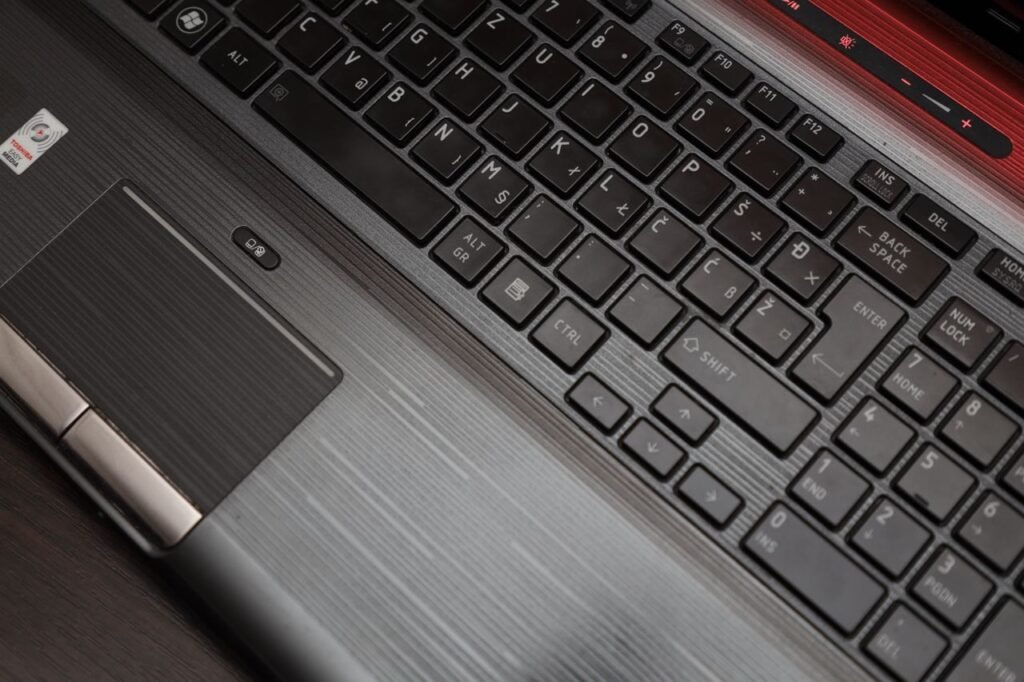
The modern web browser is where most knowledge work happens. Whether you are conducting research, managing web applications, or switching between dozens of active tabs, relying solely on your mouse or trackpad creates subtle friction. Every move to click a tab, hit a refresh button, or highlight the address bar consumes seconds that accumulate over time.
Learning to navigate the web using keyboard shortcuts transforms your browser into an extension of your thought process. By keeping your hands on the keyboard, you reduce muscle strain, maintain focus, and increase browsing speed.
1. The Anatomy of Universal Browser Shortcuts
Most modern web browsers—including Google Chrome, Microsoft Edge, Mozilla Firefox, and Apple Safari—share a standardized layout of core shortcuts.
┌────────────────────────────────────────────────────────────────────────────────────────┐
│                        KEYBOARD MODIFIER MAP                                           │
├──────────────────────────────────────┬─────────────────────────────────────────────────┤
│ Windows / Linux Modifier Key         │ `Ctrl` (Control)                                │
├──────────────────────────────────────┼─────────────────────────────────────────────────┤
│ macOS Modifier Key                   │ `Cmd` (Command)                                 │
├──────────────────────────────────────┼─────────────────────────────────────────────────┤
│ Universal Key Functions              │ Standardized across Chrome, Edge, Firefox, Safari│
└──────────────────────────────────────┴─────────────────────────────────────────────────┘
Note for Mac Users: SubstituteCtrlwithCmdandAltwithOptionacross all shortcuts listed below.
2. Essential Tab & Window Management Shortcuts
Managing tabs without moving your cursor is the quickest way to speed up daily browsing:
                          TAB NAVIGATION FLOW
                                   │
     ┌─────────────────────────────┼─────────────────────────────┐
     ▼                             ▼                             ▼
[ Switch Right ]            [ Reopen Closed ]             [ Close Current ]
`Ctrl + Tab`                `Ctrl + Shift + T`            `Ctrl + W`
-
Ctrl + T— Open a New Tab: Instantly opens a fresh tab with your cursor focused in the address bar. -
Ctrl + W— Close Current Tab: Closes the active tab immediately. -
Ctrl + Shift + T— Reopen Closed Tab: The ultimate “undo” button for web browsing. It reopens the last closed tab in chronological order, retaining its history. -
Ctrl + Tab/Ctrl + Shift + Tab— Cycle Forward/Backward: Move seamlessly through open tabs from left to right or right to left without touching the mouse. -
Ctrl + 1throughCtrl + 8— Jump to Specific Tab: Instantly switches to the corresponding tab number (e.g.,Ctrl + 1jumps to the first tab on the left).Ctrl + 9always jumps to the last tab on the far right.
3. Navigation and Address Bar Command Shortcuts
The address bar (Omnibox) is a central command line for search, URLs, and browser commands.
┌───────────────────────────────────────┐
│ Step 1: Hit `Ctrl + L`                │ Focuses address bar and highlights current URL
└───────────────────┬───────────────────┘
                    │
                    ▼
┌───────────────────────────────────────┐
│ Step 2: Type domain name (e.g., github)│ Type destination keyword or domain
└───────────────────┬───────────────────┘
                    │
                    ▼
┌───────────────────────────────────────┐
│ Step 3: Hit `Ctrl + Enter`            │ Automatically adds "www." and ".com"
└───────────────────────────────────────┘
-
Ctrl + LorF6— Focus Address Bar: Instantly highlights the current URL so you can type a new web address or search query immediately. -
Ctrl + Enter— Autocomplete.com: Type a domain name in the address bar (e.g.,google) and pressCtrl + Enterto automatically prependwww.and append.com. -
Alt + Left Arrow/Alt + Right Arrow— Back and Forward: Move backward or forward in the active tab’s viewing history. -
Ctrl + RorF5— Reload Page: Refreshes the active webpage. UseCtrl + Shift + Rto perform a hard reload that clears local cached files for that page.
4. Page Interaction & Scrolling Hotkeys
Reading long articles and analyzing web pages is significantly faster when using page-level hotkeys:
                               PAGE SCROLLING CONTROLS
                                          │
     ┌────────────────────────────────────┴────────────────────────────────────┐
     ▼                                                                         ▼
[ `Spacebar` / `Shift + Spacebar` ]                                   [ `Home` / `End` ]
Scrolls down/up one full screen length                                Jump directly to top or bottom of page
-
Spacebar/Shift + Spacebar— Screen Scroll: PressingSpacebarscrolls down one full screen length. PressingShift + Spacebarscrolls up one full screen length. -
Ctrl + F— Find on Page: Opens the built-in search bar to instantly locate specific text or keywords on the active page. -
Ctrl + Plus (+)/Ctrl + Minus (-)— Zoom Controls: Dynamically adjusts page text size. PressCtrl + 0to reset the page zoom back to 100%. -
Ctrl + Click— Open Link in Background: HoldingCtrlwhile clicking any hyperlink opens the target page in a new background tab without switching away from your current view.
5. Master Reference Cheat Sheet
| Action | Windows / Linux | macOS |
| Open New Tab | Ctrl + T |
Cmd + T |
| Reopen Closed Tab | Ctrl + Shift + T |
Cmd + Shift + T |
| Highlight Address Bar | Ctrl + L |
Cmd + L |
| Close Active Tab | Ctrl + W |
Cmd + W |
| Next Tab / Previous Tab | Ctrl + Tab / Ctrl + Shift + Tab |
Cmd + Option + Right / Left |
| Find Text on Page | Ctrl + F |
Cmd + F |
| Hard Refresh Page | Ctrl + Shift + R |
Cmd + Shift + R |
| Open Link in New Tab | Ctrl + Click |
Cmd + Click |
6. How to Build Muscle Memory (The 3-Step Strategy)
Trying to memorize dozens of keyboard shortcuts at once is overwhelming. Follow this progressive practice strategy:
┌───────────────────────────────────────┐
│ Week 1: Master Tab Switching          │ Focus exclusively on `Ctrl + T`, `Ctrl + W`, `Ctrl + Shift + T`
└───────────────────┬───────────────────┘
                    │
                    ▼
┌───────────────────────────────────────┐
│ Week 2: Master Navigation & Search    │ Add `Ctrl + L`, `Ctrl + F`, and `Ctrl + Enter`
└───────────────────┬───────────────────┘
                    │
                    ▼
┌───────────────────────────────────────┐
│ Week 3: Remove Mouse Dependency       │ Practice screen scrolling and link opening via keyboard
└───────────────────────────────────────┘
-
Pick Three Core Shortcuts: Start with the three most impactful keys:
Ctrl + T(New Tab),Ctrl + W(Close Tab), andCtrl + Shift + T(Reopen Closed Tab). -
Post a Visual Cue: Stick a sticky note on your monitor with your active targets until your fingers move automatically.
-
Expand Your Toolset: Once those three shortcuts become automatic, introduce three more (like
Ctrl + Lfor the address bar andCtrl + Ffor finding page text).
Key Takeaway
Mastering browser keyboard shortcuts eliminates small friction points in your daily digital workflow. By committing tab controls, address bar commands, and navigation hotkeys to muscle memory, you can browse faster, maintain focus, and navigate the web with ease.