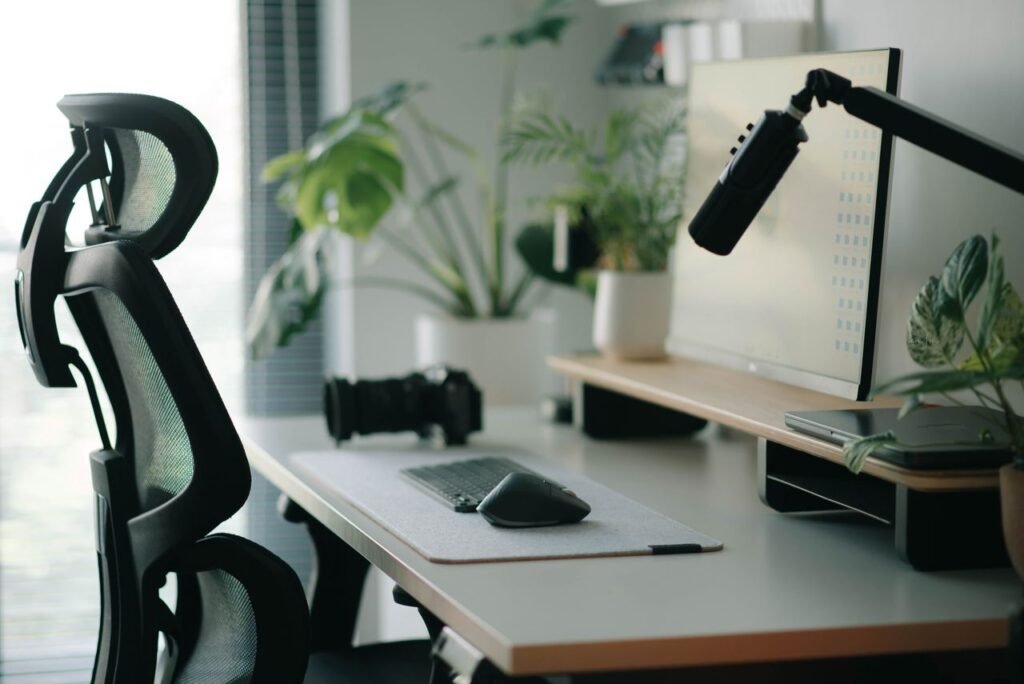
Working from home offers flexibility, but poor desk posture can quickly lead to chronic neck strain, lower back pain, and wrist fatigue. Setting up an ergonomic workspace isn’t about buying expensive designer furniture—it’s about aligning your body correctly to minimize physical stress during long work hours.
Here is a straightforward guide to optimizing your home office setup for comfort, health, and productivity.


1. The Core Principles of Ergonomic Posture
Proper workstation ergonomics revolves around maintaining a neutral spine position. Aim to keep your joints aligned at natural 90-degree angles:
| Body Part | Ideal Alignment | Common Pitfall |
| Eyes & Head | Top 1/3 of screen at eye level, head centered over shoulders | Tilting head down toward a laptop on the desk |
| Elbows & Arms | Bent at 90°–100°, resting close to your torso | Reaching forward or shrugging shoulders up |
| Lower Back | Flush against lumbar support cushion | Slouching forward or leaning away from the backrest |
| Knees & Feet | Knees at 90°, feet flat on the floor or footrest | Dangling feet or crossing legs under the chair |
2. Step-by-Step Home Workstation Setup Guide
3. Budget-Friendly Ergonomic Hacks
You don’t need a corporate budget to make your home desk comfortable:
-
No Lumbar Support? Roll up a small bath towel and place it behind the curve of your lower back.
-
Laptop Only Setup? Pair your elevated laptop with an inexpensive external Bluetooth keyboard and mouse.
-
Feet Don’t Reach the Floor? Use a sturdy box, yoga block, or thick book as a footrest.
4. Movement Habits to Prevent Fatigue
Even the most perfect ergonomic setup can cause stiffness if you remain static for hours. Build these movement habits into your workday:
-
The 20-20-20 Rule: Every 20 minutes, look at an object 20 feet away for at least 20 seconds to reduce digital eye strain.
-
Micro-Breaks: Stand up, stretch, or walk around for 2 minutes every hour to stimulate blood flow.
-
Alternate Postures: If you have a standing desk or convertible riser, alternate between sitting and standing every 30 to 60 minutes.