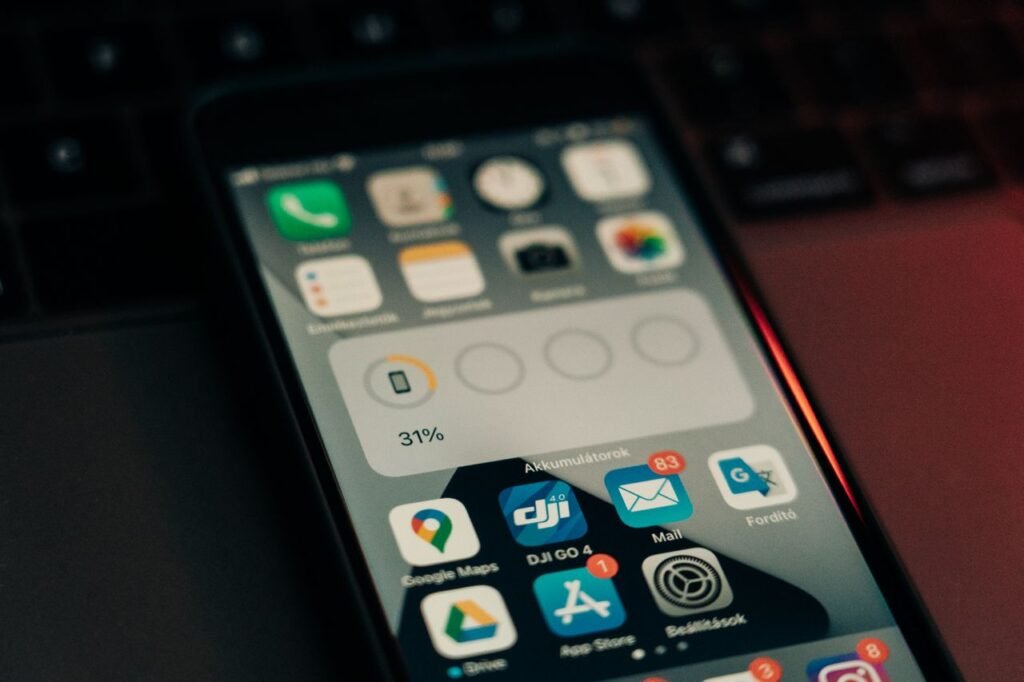
Modern smartphones pack high-refresh-rate displays, powerful multi-core processors, and constant 5G connectivity. However, battery technology relies on lithium-ion chemistry, which inherently degrades over time with every charge cycle.
Whether you use an iPhone running iOS or an Android device, optimizing operating system settings and following proper charging habits can double your daily battery life and extend the overall lifespan of your device’s internal battery.
1. Understanding Lithium-Ion Battery Health
Smartphone batteries do not lose capacity at a linear rate. They degrade based on charge cycles (using 100% of a battery’s capacity) and exposure to extreme conditions.
                         BATTERY DEGRADATION FACTORS
                                     │
    ┌────────────────────────────────┼────────────────────────────────┐
    ▼                                ▼                                ▼
[ Extreme Heat / Cold ]     [ High Voltage Extremes ]     [ Full Discharge Cycles ]
Operating above 35°C (95°F)  Holding battery at 100%        Draining battery down
degrades chemical cells     charge continuously           to strictly 0%
The 80/20 Rule:
To maximize long-term health, keep your smartphone battery charged between 20% and 80%. Charging to 100% subjects the battery to high voltage stress, while dropping below 20% increases internal resistance and strain on chemical components.
2. Universal Power-Saving Settings (iOS & Android)
Regardless of your operating system, these fundamental settings adjustments yield immediate power savings:
┌────────────────────────────────────────────────────────────────────────────────────────┐
│                        CORE POWER SAVING STACK                                         │
├──────────────────────────────────────┬─────────────────────────────────────────────────┤
│ Display Settings                     │ Lower Brightness, Auto-Lock 30s, Dark Mode      │
├──────────────────────────────────────┼─────────────────────────────────────────────────┤
│ Location & Radios                    │ Restrict GPS permissions, Disable 5G if weak    │
├──────────────────────────────────────┼─────────────────────────────────────────────────┤
│ Background Processing                │ Disable Background App Refresh, Fetch Email     │
└──────────────────────────────────────┴─────────────────────────────────────────────────┘
1. Enable OLED Dark Mode
If your phone features an OLED or AMOLED display (found on most modern iPhones and mid-to-flagship Android phones), dark mode saves significant power. OLED screens display blacks by turning off individual pixels completely, drawing zero current for dark areas of the screen.
2. Manage Screen Brightness & Auto-Lock
The display is often the largest consumer of power on a smartphone.
-
Enable Auto-Brightness to adjust screen intensity based on ambient light.
-
Set Auto-Lock / Screen Timeout to 30 seconds or 1 minute to ensure the display shuts off when idle.
3. Switch to Adaptive Refresh Rates
High-refresh-rate screens (120Hz) render smooth animations but consume more power. Enable dynamic refresh rate settings (ProMotion on iOS, Smooth Display or Adaptive Refresh on Android) to automatically drop the display down to 10Hz or 24Hz when viewing static content.
3. iOS-Specific Battery Optimization Tweaks
Settings ──► Battery ──► Battery Health & Charging ──► Enable "Optimized Battery Charging"
                                  iOS OPTIMIZATION PATHS
                                            │
     ┌──────────────────────────────────────┼──────────────────────────────────────┐
     ▼                                      ▼                                      ▼
[ Background App Refresh ]        [ Location Services ]                  [ Push Email Settings ]
Settings > General >              Settings > Privacy & Security >        Settings > Mail > Accounts >
Turn Off for non-essential apps   Limit to "While Using"                 Fetch Data > Change to Hourly
1. Turn On Optimized Battery Charging
Navigate to Settings > Battery > Battery Health & Charging and enable Optimized Battery Charging. iOS learns your daily charging routine and delays charging past 80% until right before you wake up, reducing battery stress overnight. On iPhone 15 models and newer, you can set a hard 80% Limit.
2. Disable Background App Refresh
Apps like social media platforms constantly check for updates in the background. Go to Settings > General > Background App Refresh and disable it globally or turn it off for non-essential applications.
3. Audit Location Permissions
Continuous GPS usage quickly drains the battery. Go to Settings > Privacy & Security > Location Services and change application access from Always to While Using the App.
4. Android-Specific Battery Optimization Tweaks
Settings ──► Battery ──► Adaptive Preferences ──► Enable "Adaptive Battery"
                                ANDROID OPTIMIZATION PATHS
                                            │
     ┌──────────────────────────────────────┼──────────────────────────────────────┐
     ▼                                      ▼                                      ▼
[ App Battery Usage ]             [ Nearby Device Scanning ]             [ Cellular Radio (5G) ]
Settings > Apps > Select App >    Settings > Connected Devices >         Settings > Network & Internet >
Set to "Restricted"               Disable Bluetooth/Wi-Fi Scanning       Set preferred network to LTE/4G
1. Enable Adaptive Battery
Android’s Adaptive Battery feature uses machine learning to limit battery usage for apps you rarely open. Enable it under Settings > Battery > Adaptive Preferences (or Battery Saver depending on manufacturer skins like Samsung One UI or Pixel UI).
2. Restrict Background Power for Drainers
Navigate to Settings > Apps, select resource-heavy applications, tap App battery usage, and change the setting from Optimized to Restricted.
3. Turn Off Nearby Device Scanning
Android continuously searches for nearby Bluetooth devices and Wi-Fi networks even when radios are toggled off. Search for Nearby Device Scanning in Settings and disable it to prevent constant background radio polling.
5. Healthy Charging Habits & Best Practices
| Habit | Recommended Practice | Why It Matters |
| Thermal Protection | Avoid charging in direct sunlight or under pillows. | High heat ($> 35^\circ\text{C}$) permanently damages lithium-ion capacity. |
| Charger Choice | Use certified USB-PD (Power Delivery) chargers. | Prevents voltage spikes and manages heat regulation during fast charging. |
| Overnight Charging | Enable built-in smart charging features. | Prevents holding the battery at maximum voltage for hours on end. |
| 5G Management | Switch to 4G/LTE if local 5G signals are weak. | Weak 5G coverage forces cellular modems to boost power output to hold signals. |
Key Takeaway
Extending smartphone battery life requires a combination of smart settings management and good charging habits. By enabling dark mode, restricting background processing, managing location permissions, and avoiding thermal stress, you can maximize your daily screen-on time and preserve your phone’s battery health for years.